

Works with no Wi‑Fi
Download your flight once on Wi‑Fi; in the air, your phone's GPS places you.
The GPS also records the route you really fly, not the planned one; after you land, the flight's page draws it.
Pick the right window before you fly
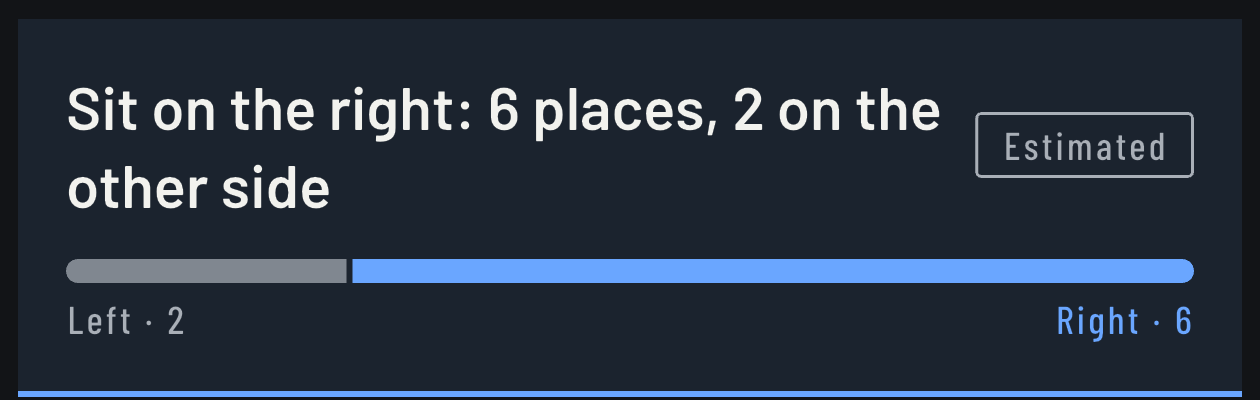
“Which side to sit” counts the places on each side of your route: from Salt Lake City to San Francisco, 6 on the right and 2 on the other side, so sit on the right.
Another route, Salt Lake City to San Francisco:
The landscape from your seat, named as you pass
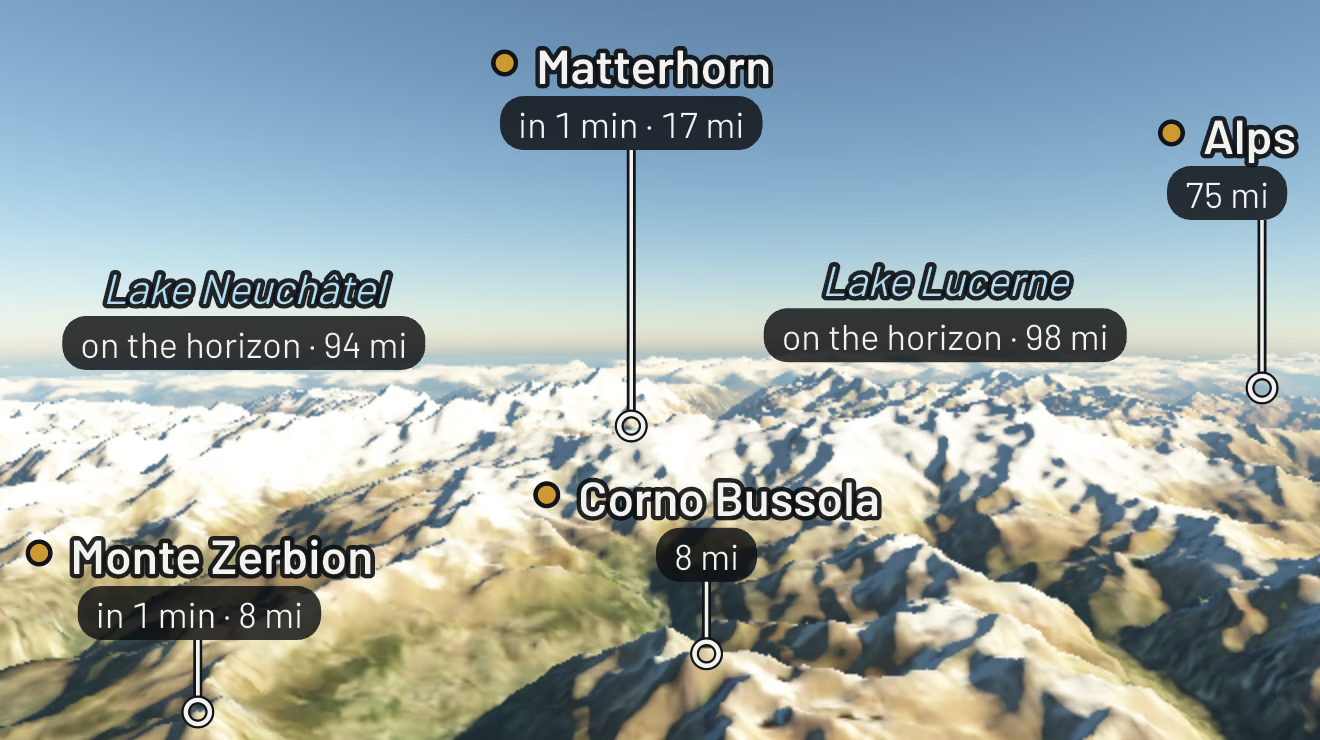
The Window View: mountains, lakes, cities and coastlines, as they come into view.
The Window View over the Alps, on this flight. In the app: Real, with Pro.
At night, the sky from your window, named
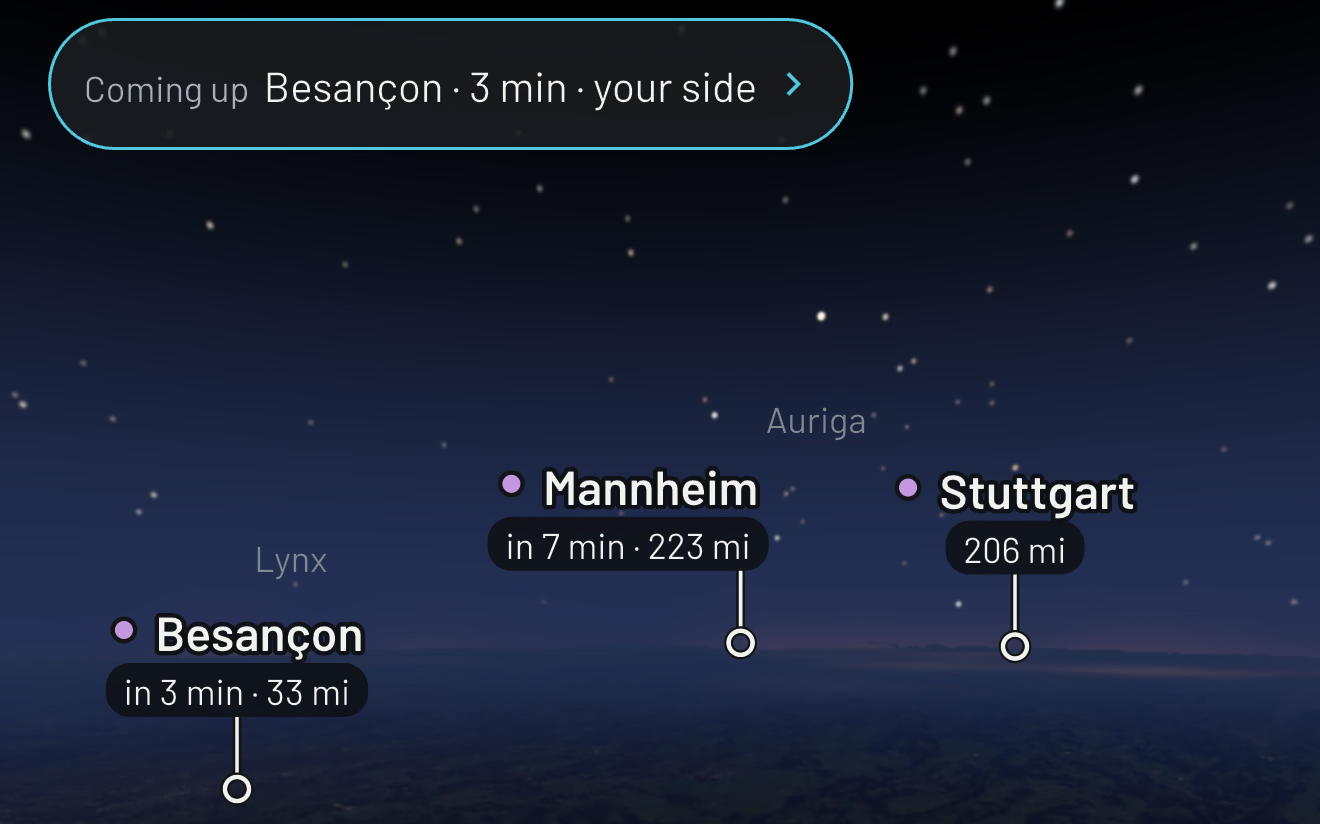
With Pro, the stars and the constellations are named; on this route, the ground below stays dark.
The same route by night, before Besançon. In the app: Real, with Pro.
Understand your flight
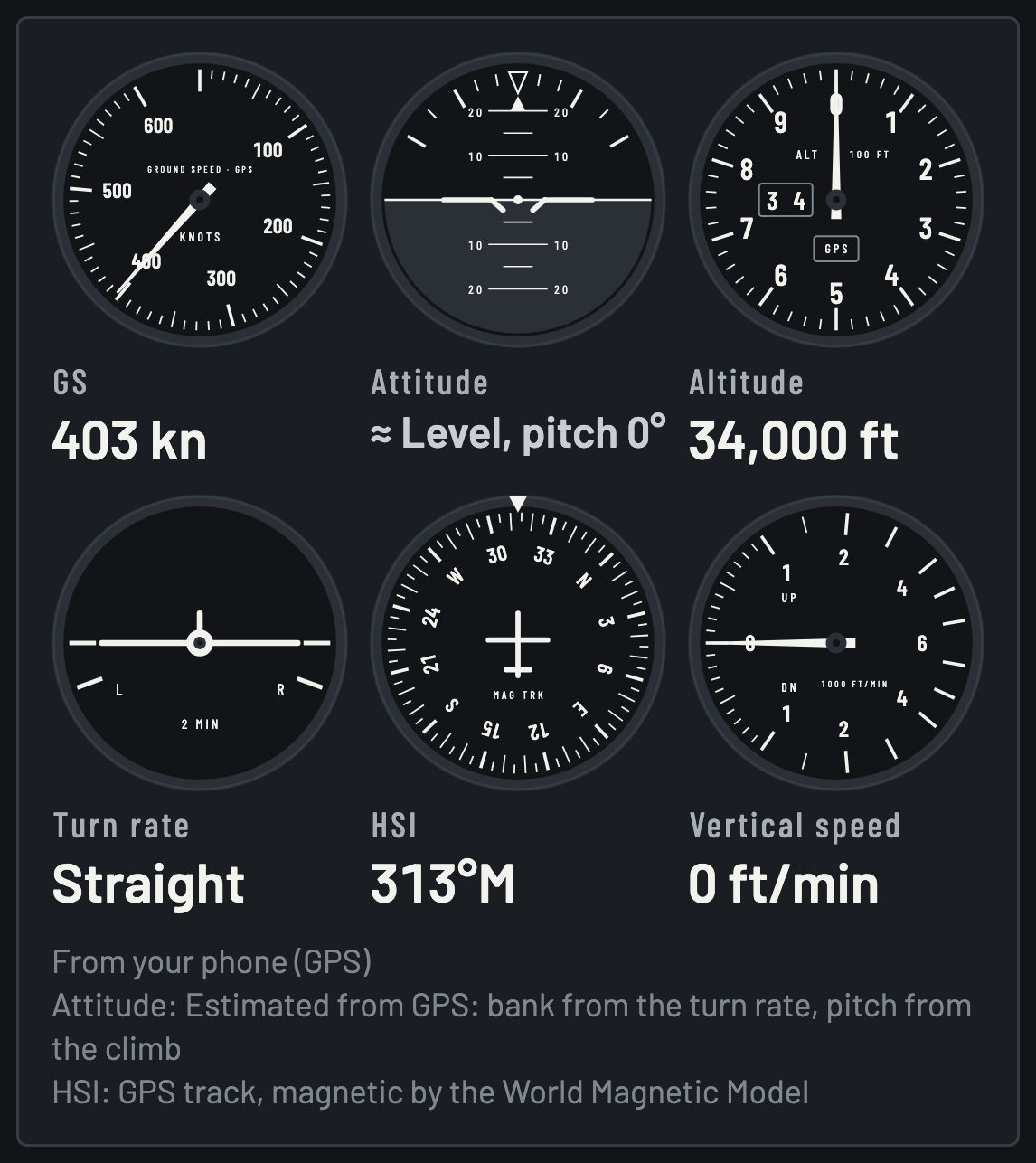
Six instruments from your phone's GPS, every value labeled with its source.
The Cockpit view with Pro, on this flight. In the app, with Pro. Below: this flight's readouts, reaching these values as it passes this moment.
Know what's coming up
Cities, lakes and peaks, with the minutes and the side.
Coming up on this flight, 6 min before Paris. In the app.
Every country you've flown over
Not only the ones you landed in.
Passport › Countries, with this flight alone. In the app. On the bar below: this flight's, stamped at each border.
Your Passport
Every flight you add goes into it.
The Map tab's globe, with this flight alone. In the app.
Missions and patches
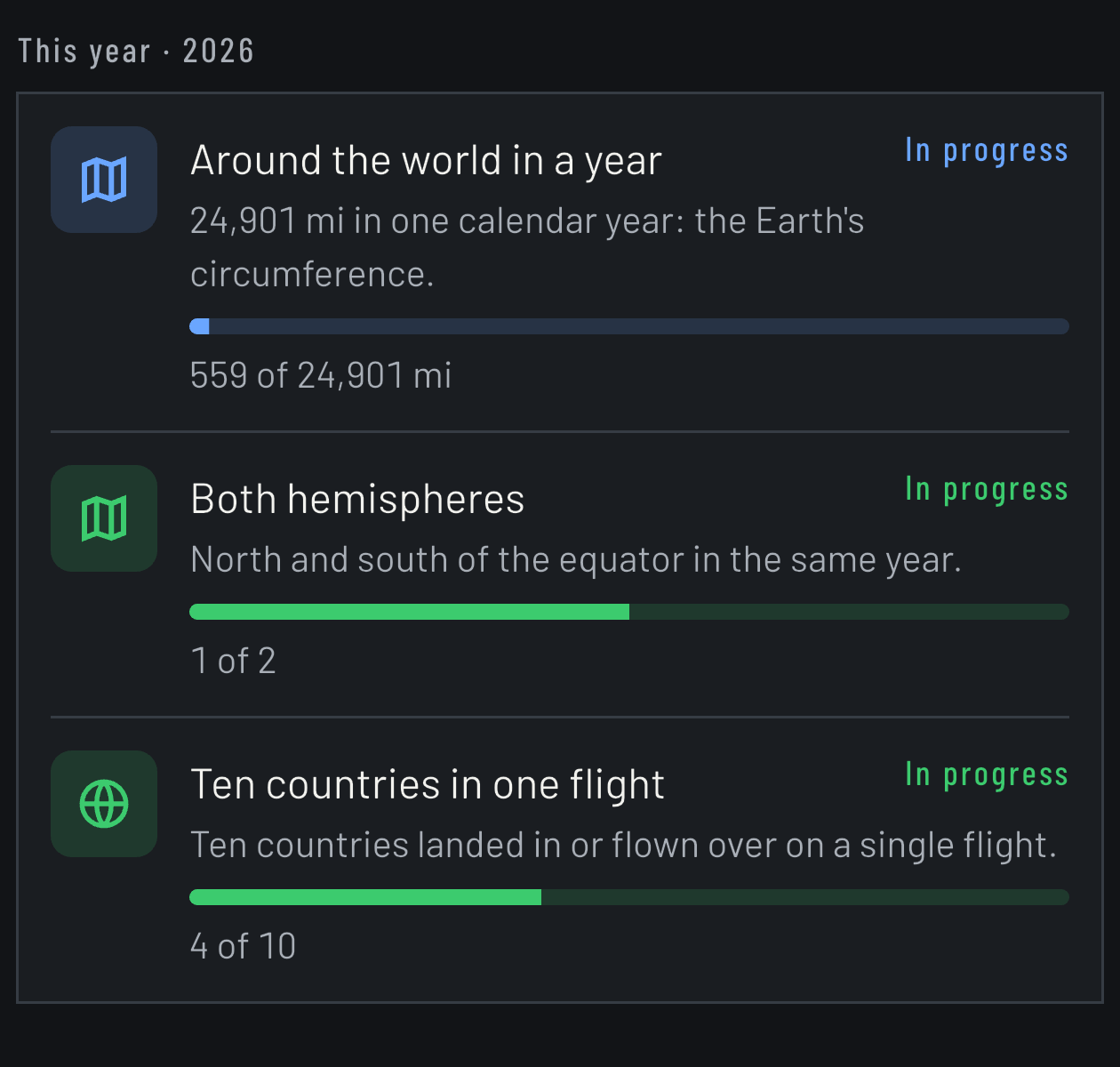
The Flying year 2026 patch, earned with this flight, and this year's missions under way.
Passport › Patches and Missions, with this flight alone. In the app.





At the gate. Illustrated: the taxi and the takeoff rollIllustrated
- Altitude
- Ground speed
- To go
Coming soon to the App Store
Questions
Does it need Wi-Fi on board?
No. Before you fly, add your flight and download its Flight Pack once, on Wi-Fi. In the air it needs no Wi-Fi.
Can I use it in airplane mode?
Yes. Your iPhone's GPS keeps working in airplane mode, and Overflown uses it to place you on the map.
Does it show the real route?
Yes. In flight, your iPhone's GPS places you where you really are; once you land, the page of a flight you followed shows the route your phone recorded, not the planned one, kept only on your iPhone.
Which iPhones?
Any iPhone with iOS 17 or later.
What happens to my location?
In flight, Overflown uses your GPS to place you and stops after landing; your track stays on your iPhone. City-scale map imagery comes from Mapbox, whose SDK may collect location and usage data.